Logging In & The Dashboard
Accessing Canvas requires an active UCID.
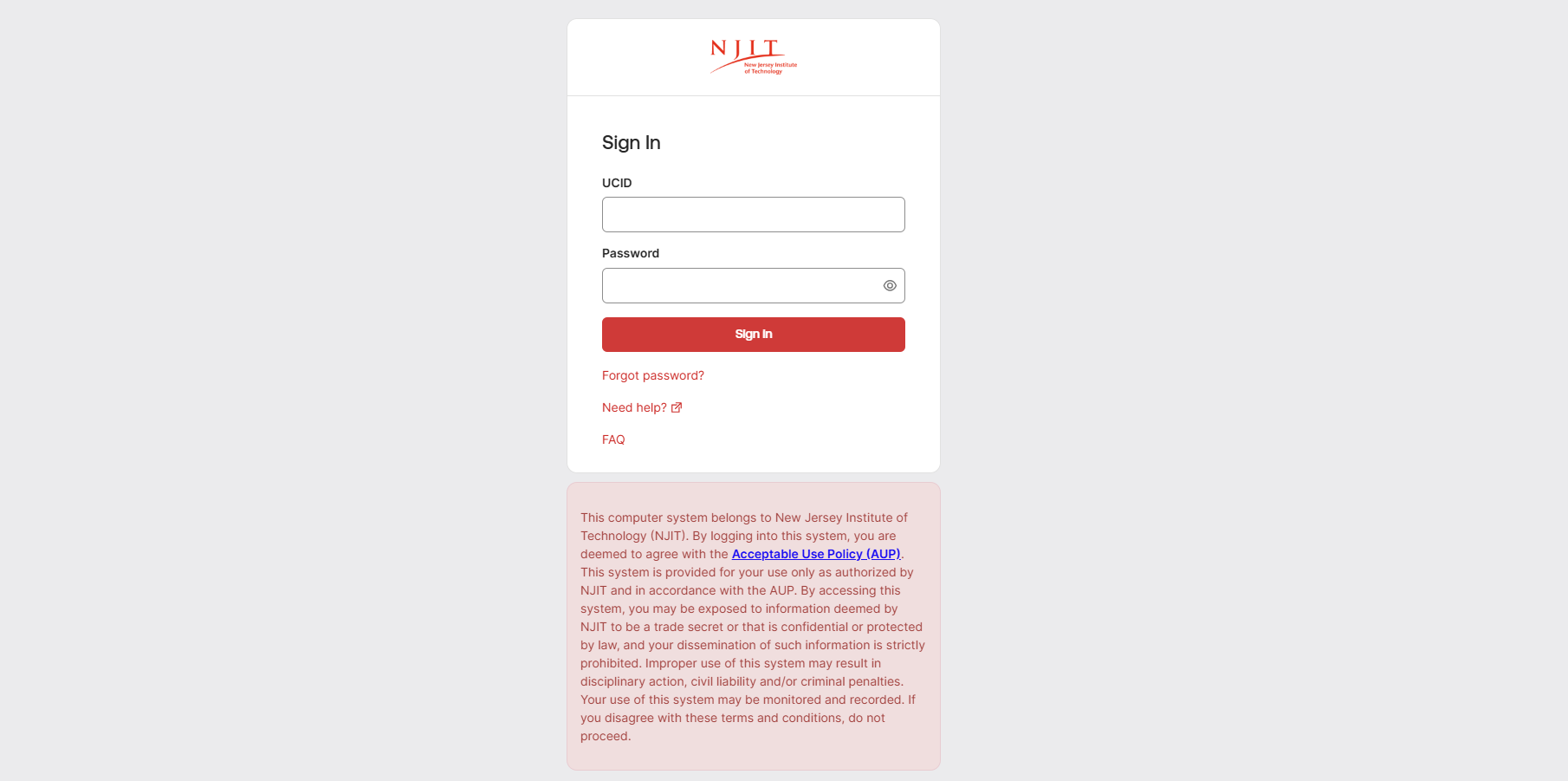
Navigate to the Canvas Login Page and authenticate using your UCID and password via the secure Single Sign-On (SSO) gateway.
Upon login, your Dashboard will display your active course enrollments as colored cards. Click on a specific course card to begin development.
Your Canvas Sandbox
If you do not see a sandbox in your Canvas dashboard, you can request one by contacting servicedesk@njit.edu.
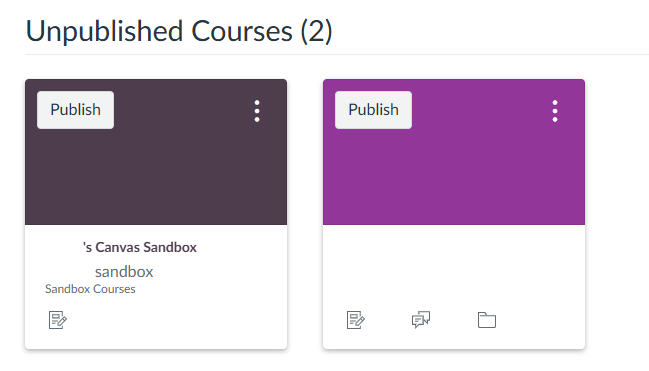
A Canvas Sandbox is a private, secure, and unpublished development environment that is not tied to a specific academic term or student roster.
For instructors, it serves as a permanent workspace to experiment with course designs, test permitted integrations, build grading rubrics, and map out modules before applying that polished content into your live, student-facing semester courses.
Course Structure Planning
Before importing content, it is important to understand how Canvas organizes learning materials. A well-planned navigation structure reduces student anxiety and administrative overhead.
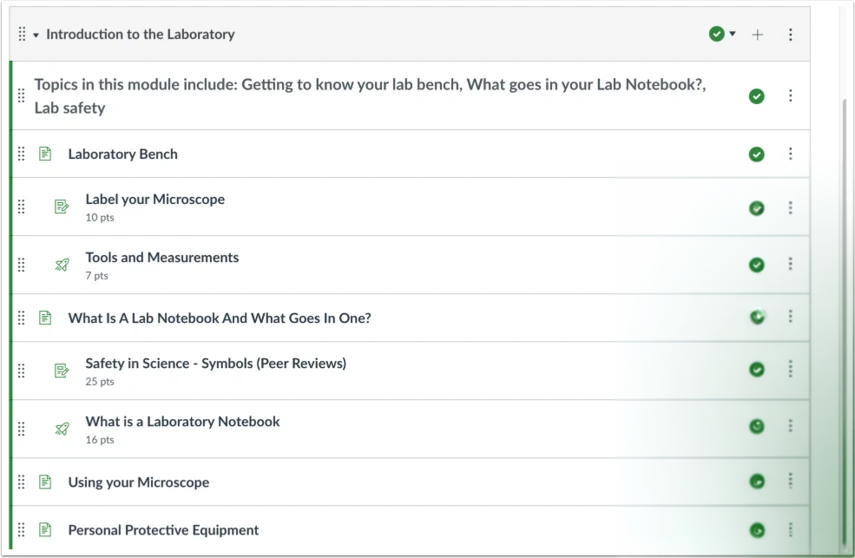
Modules: This is the architectural backbone of your course. Use Modules to organize your semester chronologically or thematically to guide students through a logical learning path.
Syllabus: There are multiple ways to present your syllabus to your students. It is highly recommended to use Canvas's integrated Syllabus feature to type your course outline directly into the Rich Content Editor or upload your syllabus as a downloadable file.
Pages: Use Pages to deliver your instructional content, embed Panopto videos, and provide context before students complete assessments.
Evaluate Learning: Assignments, Discussions, and Quizzes assist you in forming your core assessment strategy, feeding directly into the Canvas Gradebook.
Build, Migrate, and Publish
Once you have conceptualized your structure, you must choose your development methodology. Our tailored branching pathways will guide you through importing an existing course or building a new one from scratch. These pathways also cover finalizing your Canvas content and officially Publishing the course to make it visible to enrollees.
- Please visit the Quick Canvas Tutorial Pathways to get started.
Further Assistance
For granular, step-by-step instructions on Canvas functionality, access the Teaching and Learning Knowledge Base.
If you require technical assistance or experience system errors, please submit a request through the IST Service Desk. Your request will be routed to the Office of Digital Learning for support.
Adhere to WCAG 2.1 AA GuidelinesWCAG 2.1 AA Guidelines for all LMS and course content, multimedia (audio and video), websites and applications (mobile and desktop), and social media and communications. For third-party vendor platforms, best practice is to request a completed Voluntary Product Accessibility Template (VPAT) during procurement.
To facilitate your efforts to abide by the WCAG 2.1 AA Guidelines, here is a list of tools you can use:
- Adobe Express Color Contrast Checker - A web-based utility for measuring color contrast ratios in digital designs, graphics, and presentations against WCAG foreground and background requirements.
- Microsoft 365 Built-in Accessibility Checker - A native feature within Word, PowerPoint, Excel, and Outlook that scans files for missing alt-text, reading order conflicts, and contrast data, providing remediation steps directly within the application interface.
- Adobe Acrobat Accessibility Checker - A functional component of Acrobat Pro that evaluates PDF documents for structural tags, reading order, and baseline WCAG requirements.
- Canvas Accessibility Checker - An integrated utility within the Canvas Rich Content Editor that evaluates syllabus pages, assignments, and discussion posts for structural and visual elements prior to publication.
- Accessibility Insights for Web (by Microsoft) - A browser extension for Chrome and Edge that executes automated scans and provides guided manual audit workflows for web pages and browser-based applications.
- WAVE Evaluation Tools (by WebAIM) - A browser extension that processes page data locally and overlays visual indicators on web pages to identify structural layout elements, missing labels, and contrast metrics.
- Colour Contrast Analyser (CCA) by TPGi - A standalone desktop application for Windows and macOS featuring an eyedropper tool to measure color contrast combinations on offline documents, local software interfaces, and proprietary assets.
For specialized guidance on implementing official student accommodations (such as extending quiz times or providing alternative formats), consult and collaborate directly with the Office of Accessibility Resources and Services (OARS)Office of Accessibility Resources and Services (OARS).
For guidance on implementing accommodations in Canvas Quizzes:
For guidance and strategies on aligning Canvas and other NJIT-sanctioned educational technology tools with your specific teaching methodology, the Center for Excellence in Innovation and Education (CEIE)Center for Excellence in Innovation and Education (CEIE) and the Office of Digital Learning work in tandem to support your courses. To ensure you get the most effective assistance, simply ask yourself whether your question is about the approach to teaching or the application of the technology.
Reach out to CEIE for Pedagogy & Strategy (The "Why" and "How")
-
Course Design: Structuring your syllabus, writing learning objectives, and pacing your modules to manage student cognitive load.
-
Assessment & Engagement: Developing authentic assignments, creating effective rubrics, formulating discussion prompts, and planning active learning activities.
-
Student Success: Strategies for mitigating cheating, accommodating diverse learning needs, and keeping remote or passive students engaged.
-
XR & Immersive Learning: Identifying where Virtual or Augmented Reality (VR/AR) simulations best achieve your specific learning outcomes and designing the instructional experience around them.
Reach out to Digital Learning for Technology & Execution (The "Where" and "What")
-
Canvas Mechanics: Building modules, importing previous course content, setting up assignment groups, and weighting the gradebook.
-
Tool Integration: Configuring settings for Zoom, Turnitin/iThenticate, proctoring solutions, and other third-party LTI tools.
-
Troubleshooting: Fixing broken links, resolving student access issues, extending quiz time limits for accommodations, and pulling Canvas analytics.
-
XR Deployment & Support: Managing headset hardware provisioning, installing VR/AR applications, reserving time in the XR lab, and troubleshooting immersive tech integrations.
